How to Save Chrome Tabs Without Losing Them
Toby Team
June 11th, 2026
6 min read
You have a window full of tabs and a reason to close it. The laptop needs a restart, Chrome is eating memory, or you’re moving to a different project and the current set is in the way. The problem is the same every time. You want the tabs gone, but you don’t want them gone forever.
There are a few ways to save your Chrome tabs, and the right one depends on what the tabs actually are. This post walks through each method, from the thirty-second built-in trick to a proper saved session, and it’s honest about where each one falls down. By the end you’ll know which to reach for, and how to make closing a tab feel like setting it down instead of throwing it away.
The fastest way to save Chrome tabs: bookmark them all at once
Chrome has this built in, and most people miss it. Right-click any tab and choose “Bookmark all tabs,” or press Ctrl+Shift+D (Cmd+Shift+D on a Mac). Chrome drops every open tab into a single bookmark folder and asks you to name it. That’s the whole trick. You can close the window and the links are kept.
It’s the quickest answer to “how do I save all open tabs in Chrome,” and for a one-off it works fine. The catch is what happens next. The folder lands in your bookmarks bar or the bookmark manager, collapsed and sorted alphabetically, stripped of the visual layout that helped you find anything in the first place. A week later you have three folders called “research,” “research (2),” and “tabs Jan 14,” and you open none of them. Bookmarks are good at holding permanent reference links. They’re a poor home for a live working set, and there’s more on that distinction below.
Let Chrome reopen your tabs automatically (and why that isn’t a real save)
If your only goal is to get yesterday’s tabs back this morning, you don’t have to save anything by hand. Open Chrome’s menu, go to Settings, find the “On startup” section, and choose “Continue where you left off.” Now Chrome reopens whatever was open when you last quit. To restore tabs in Chrome that you closed by accident, press Ctrl+Shift+T (Cmd+Shift+T on a Mac), and keep pressing to step further back. Your recent pages also live under History.
This is the lightest way to save a browser session, and for a lot of people it’s enough. But it isn’t really a save. It’s a single rolling snapshot. It only holds your most recent session, so you can’t keep several different ones side by side. It overwrites itself quietly every time you close the window. And it isn’t crash-proof: if Chrome doesn’t shut down cleanly, or an overnight update restarts it, the snapshot can be gone with nothing to bring back. Built-in restore is convenient, but it’s the browser doing you a favor, not a guarantee.
When you want named, reusable sessions: use a tab manager
The two built-in options share a ceiling. Bookmarks save the links but lose the layout. “Continue where you left off” saves the layout but only the last one. Neither lets you do the thing most knowledge workers actually want, which is to take a set of tabs, give it a name, close it, and open the whole thing back up on purpose, as many times as you like.
That’s the job a tab manager (sometimes called a session manager) is built for. Tools in this category, Session Buddy and Workona among them, let you save all your open tabs in Chrome as a named group and restore the group later. The differences between them come down to how the saved tabs are shown back to you, whether they sync across machines, and how much friction sits between “I want to save this” and it being saved.
How Toby fits
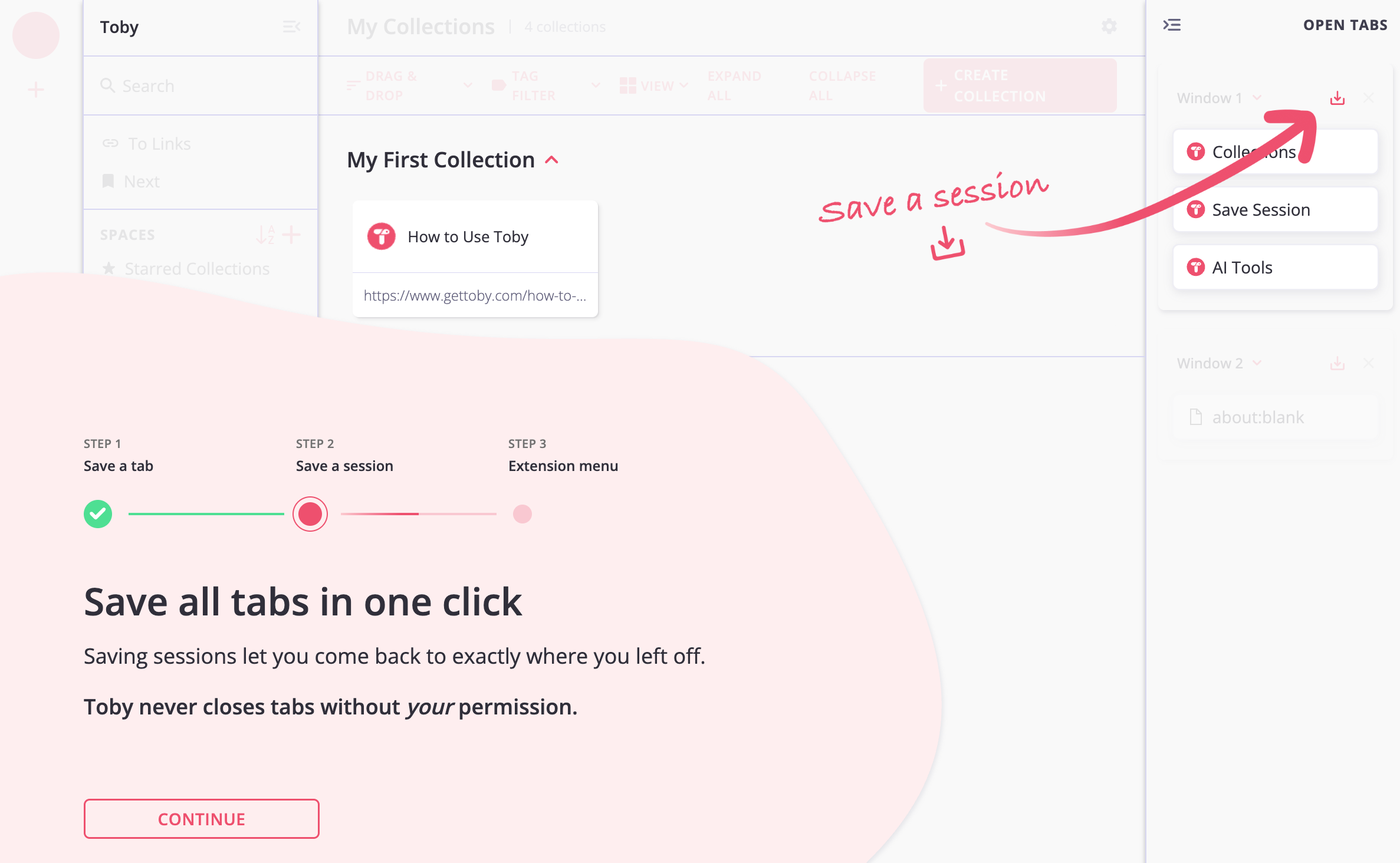
Toby is a Chrome extension that turns your new tab page into the place your saved work lives, instead of a blank rectangle. Each saved group is a collection: a row of cards and favicons you can see at a glance, not a folder you have to remember to open.
The interaction the whole product is built around is Save Session. There’s a single “Save Session” button in the toolbar popup; you can also right-click any page, open the Toby menu, and choose “Save Session,” or press Cmd+Shift+S (Ctrl+Shift+S on Windows). Any of those takes every tab in the current window and tucks it into a named collection. Reopening is the mirror image. The collection sits on your new tab page, and one click brings the whole set back.
The design bet is that recognition beats retrieval. You don’t have to recall a folder name or dig through a menu; you glance at the page and see the project. If you’ve ever wondered why you keep tabs open instead of bookmarking them, that’s the reason, and a saved session is what closes the gap.
We’re honest that this isn’t for everyone. If “continue where you left off” covers you, you’re set, and you don’t need another tool. But if you keep several projects in flight and the built-in options keep losing the thread, a named, reusable session is the missing piece.
Which method should you actually use?
A quick way to choose, by what the tabs are:
- A link you’ll need for months (your payroll portal, a style guide, the company wiki): bookmark it with Ctrl+D and move on.
- Today’s tabs you just want back tomorrow on the same machine: turn on “Continue where you left off.”
- A project-shaped set of tabs you’ll return to again and again: save it as a named session in a tab manager.
To try the last one right now, open the window you’ve been avoiding closing, save the whole thing as one session, name it after the project, and close it. Open it again tomorrow. If what you feel is relief, you’ve found the method your work was asking for.
FAQ
How do I save all my open tabs in Chrome at once?
Right-click a tab and choose “Bookmark all tabs,” or press Ctrl+Shift+D (Cmd+Shift+D on Mac), to drop them all into one folder. For a set you’ll reopen often, a tab manager’s one-click save session keeps the layout, not just the links.
How do I make Chrome reopen my tabs automatically?
Go to Settings, then the “On startup” section, and pick “Continue where you left off.” Chrome will restore your last session on launch. Just remember it only keeps the most recent one and isn’t crash-proof.
How do I restore tabs in Chrome that I closed by accident?
Press Ctrl+Shift+T (Cmd+Shift+T on Mac) to reopen the last closed tab, and keep pressing to step back through earlier ones. You can also find recent pages under the History menu.
Do saved tabs sync across devices?
Chrome bookmarks sync through your Google account. Most tab managers also sync their saved collections once you’re signed in, so a session you save on your laptop shows up on your desktop.
What’s the difference between saving tabs and bookmarking?
Bookmarks are built for permanent reference; saved sessions are built for active, project-shaped work. We wrote a whole piece on when to use each.